Last Updated: Oct 2026

1
Award Winning Service

.20210527084730.png)
monday.com
 Free Trial
Boost your team's productivity with powerful personal and group calendar tools
- Shareable calendar for team collaboration
- Integrate your favorite calendar app
- Know your team's workload at a glance
- Free 14-day trial, no credit card needed
Forbeshighlights monday.com
“The workflow management tools on Monday.com are as user-friendly as possible. “ (Jan 2026)
9.8
Exceptional
Did you know?
Project management software saves the average employee 498 hrs/year (SaasList)
.20210527085313.png)
Our Most Popular Pick
monday.com
Free TrialBoost your team's productivity with powerful personal and group calendar tools
- Shareable calendar for team collaboration
- Integrate your favorite calendar app
- Know your team's workload at a glance
- Free 14-day trial, no credit card needed
Forbeshighlights monday.com
“The workflow management tools on Monday.com are as user-friendly as possible. “ (Jan 2026)
9.8
Exceptional
Best Shared Calendar Apps for Teams in 2026
Every successful business runs on a busy schedule. There are tasks to complete, meetings to conduct, and projects to deliver. But if team members can’t coordinate, it means canceled meetings and delayed deadlines.
This is where shared calendar apps come in, enabling teams to manage and coordinate their schedules for maximum efficiency. Just look at a colleague’s schedule and you will know when they’re free to hop into a meeting. Mark important tasks on your shared calendar and everyone will know what to prioritize and when. But if you’re unsure which app is best for your business, read on to learn about the most important features to consider.
Essential shared calendar features you should look for
When considering which shared calendar app to use for your business, ensure they have these essential features:
Easy to use
Shared calendars are meant to increase efficiency. That’s why they should be easy to use, with minimal navigation required. User-friendly interfaces and intuitive designs can go a long way towards making a calendar app truly productive.
A good shared calendar app should also make it easy for team members to track projects, schedule meetings, and update milestones. In addition, it should offer a birds-eye view so that you can take a glance and know what tasks to complete first.
Simple scheduling tools
A shared calendar should simplify the process of scheduling meetings between team members. You should be able to check a coworker’s schedule and find suitable meeting times in just a few clicks, without having to fumble around the interface for information.
There are a few other scheduling tools to look out for. Calendar customization features make it possible to change the language, time zone, and welcome message for your calendar profile. Multiple calendar availability checking helps you aggregate calendar schedules from multiple team members to determine mutual availability. Finally, time and location-based reminders set off an alarm whenever you reach a specific time or place.
Team collaboration and sharing features
A shared calendar app is more than just a regular calendar. It’s an integral part of your tech stack and can prove vital to project management. So a good calendar app should make it possible to not only share calendar availability but also send event invites and collaborate on specific documents.
Such features enable you to streamline your everyday workflow and get projects done and delivered on time with minimum fuss.
Automatic syncing
Auto-sync is a must-have for every shared calendar, which is why you should always double-check to make sure it’s included in your app. Basically, when you alter your schedule, it’s automatically synchronized across all accounts and calendars that you’re connected with. That makes sure everyone’s on the same page.
Automatic syncing is especially vital for remote teams working in a fast-paced environment, such as startups. If you have team members based around the world, it’s all the more important to be able to stay aware of your coworkers’ changing schedules.
Integrations with other business apps
Shared calendar apps are meant for professionals, who are likely to switch between multiple applications such as email clients, messaging apps, and project management tools. That’s why your calendar needs to integrate seamlessly with these services, helping you go from one to the other with little effort.
Of course, some shared calendars take this a step further to integrate with payment processors, video conferencing apps, and customer relationship management tools. Popular integrations include Zoho, Salesforce, Zoom, Slack, Hubspot, Zapier, Stripe, and Asana.
Cross-platform availability
In 2026, you likely use more than one device to keep track of your projects. The ability to switch between devices without losing access to your schedule is crucial, which is why shared calendars should be available across different platforms.
Most popular shared calendars are available across desktops, laptops, smartphones, and tablets, with apps for operating systems like Windows, macOS, Android, and iOS. Some of them are also available as add-ons for browsers like Google Chrome and email clients like Outlook.
Key takeaway
With the number of good options available in the market, it shouldn’t be too hard to find a shared calendar app that suits your business. However, you must prioritize the features that you need most and be aware of your budget as you do so.
Most calendar apps charge you based on the number of team members using them, so prices can stack up quickly. Make sure you don’t pick a plan that offers too many features with little use to your business. Many calendar apps offer free versions or trials to test drive their features, so be sure to make good use of them.
Our Top 3 Picks
- 1Exceptional9.8
 Efficient resource management tool
- Price - From $27/month ($9/user/month)
- Team collaboration tools - Collaborative docs, updates, Zoom integration, whiteboards
- Free trial - 14 days
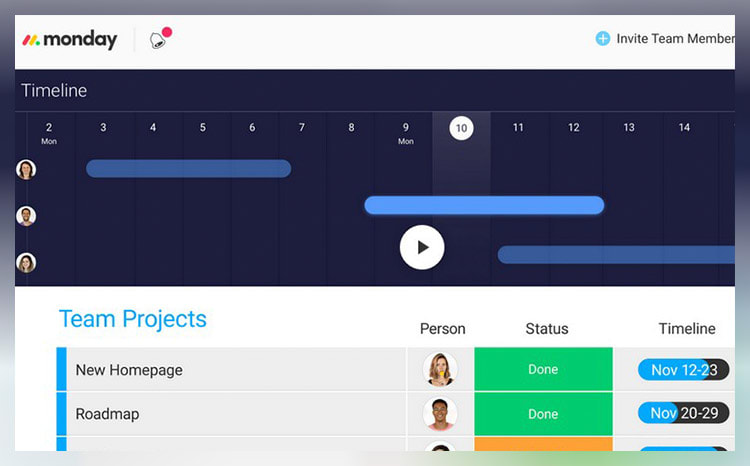
Efficient resource management toolRead monday.com Reviewmonday.com unifies your team’s tasks and processes into one user-friendly and visually pleasing interface.
As a work operating system, monday.com gives teams a clear view of responsibilities and deadlines, boosting transparency, accountability, and resource management. It features over 200 templates that can be customized with 20+ column options and various integrated apps. These tools simplify project setup and save time, helping you work more efficiently.
Additionally, you can tailor dashboards to provide detailed, team-specific views of tasks, project progression, and upcoming deadlines to enhance your team’s workflow clarity. Samyuktha Shivakumar, Global Marketing Operations Manager at Thoughtworks, reinforces this, stating that monday.com enables them “to budget the team’s time and efforts much more scientifically.”
Why we chose to review monday.com: monday.com tops our list for its combination of power, flexibility, and user-friendly design, making it ideal for even the most complex projects. It lets you seamlessly import data from spreadsheets and integrate it with your existing tools, eliminating manual data entry and freeing up time for other priorities.
Our experience: monday.com lets me implement processes that would’ve previously taken days or weeks within a few minutes. The platform’s communication tools, such as document sharing, comment annotation, and direct communication with task managers, improve collaboration within my team. The platform allows for excellent transparency for task management through easy-to-use sorting and color-coding methods.
monday.com Pros & Cons
PROS
Color-rich interface for improved organization and coordinationRobust list of supported, third-party integrationsDrag and drop project charting and timeline constructCONS
Pricing structure is fragmented and unclearCertain features (Gantt charts, timelines, etc.) are paywalled by higher-tier plans - 2
 Excellent9.3
 Visualize tasks and integrate apps
- Price - From $7/month/user
- Team collaboration tools - Collaborative docs, real-time chat, file sharing, proofing
- Free trial - Free plan available
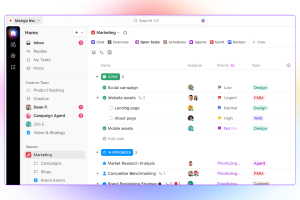
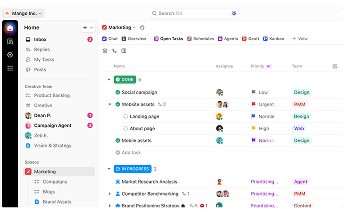
Visualize tasks and integrate appsRead ClickUp ReviewClickUp stands out with its diverse visualization tools, including Gantt charts, mind maps, and Kanban boards, which suit various project management styles.
These features make it easy to track tasks, monitor progress, and identify challenges.
The "Timeline View" offers a clear, linear way to plan schedules and create visual roadmaps. You can group tasks by assignee, priority, tags, custom fields, and more, allowing for a flexible and organized workflow. ClickUp also boosts team visibility with the "Pulse ClickApp," which shows who's online and their current tasks. Its global timer lets you track time automatically or manually, syncing seamlessly with your desktop, mobile, or browser.
Why we chose to review ClickUp: What sets ClickUp apart is its seamless integration with over 1,000 other apps, including Slack, GitLab, GitHub, and Webhooks. This capability makes it a go-to choice for development teams, allowing them to streamline their existing workflows.
Our experience: While trying out ClickUp, I was particularly impressed with ClickUp’s unique features, such as notepads, time tracking software, goal-setting tools, and pre-made templates. I also liked that I could use slash commands (typing “/” in any text field to trigger a command menu) to assign tasks, set due dates, or create subtasks quicker.
ClickUp Pros & Cons
PROS
AI CompatibleCan integrate with over 1,000 appsOffers numerous project tracking toolsCONS
Extensive feature list can be overwhelming for new usersSteep learning curve for beginners - 3
 Good8.3
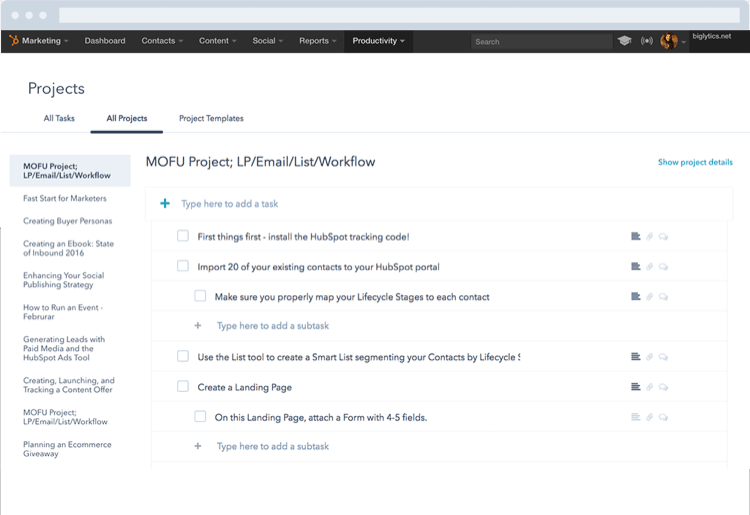 Includes pre-made to-do lists
- Price - From $50/month
- Team collaboration tools - Email integration, shared inbox, real-time chat, file sharing
- Free trial - Free plan available
Includes pre-made to-do listsRead HubSpot ReviewYou can use HubSpot to enhance team coordination via structured lists. This platform lets you create and assign tasks, add subtasks, and set due dates from the same tab. You can also tag team members, leave comments and attach files inside projects for improved communication and collaboration.
While HubSpot may not have advanced tools like Gantt charts or detailed time-tracking, it provides a reliable foundation for managing tasks. For example, its real-time dashboard offers critical insights into project timelines, team workloads, and individual performance.
You can use this data during one-on-ones to identify potential hold-ups. It can also help you to delegate work more effectively. You can even tailor your dashboard view according to your team’s specific needs for a more personalized project management experience.
Why we chose HubSpot: This platform offers prebuilt project templates to help sales and marketing teams with tasks like launching sales campaigns and creating email newsletters. Each template comes with predefined action steps and best practice guidelines. These templates can save time and ensure everyone has clear instructions on what needs to be done.
Our experience: HubSpot’s features were easy to use and understand, even for our team members with limited technical know-how. Its seamless integration with HubSpot’s CRM also created a unified work environment for all our departments. Plus, being able to sync it with my calendar made it easy to know when to work on tasks and when to prepare for meetings.
HubSpot Pros & Cons
PROS
Customizable real-time dashboardOffers prebuilt project templatesIntegration with other HubSpot productsCONS
Smaller enterprises might find HubSpot's premium pricing costlyLacks more advanced project scheduling software



37,788 people
visited a project management software this month

Top10.com Total Score
Our product scores consist of a combination of the following 3 components:
Popularity
Top10.com measures user engagement based on the number of clicks each listed brand received in the past 7 days. The number of clicks to each brand will be measured against other brands listed in the same query. Therefore, the higher the share of clicks a brand receives in any specific query, the higher the Click Trend Score. Top10.com accepts advertising compensation from companies, which impacts their (and/or their products’) position, and in some cases, may also affect their Click Trend Score.
Brand Reputation
Semrush is a trusted and comprehensive tool that offers insights about online visibility and performance. The Top10.com Total Score will consist of the brand's reputation from Semrush. The brand reputation is based on Semrush's analysis of clickstream data, which includes user behavior, search patterns, and engagement, to accurately measure each brand's prominence, credibility, and trustworthiness. If a brand does not have a Semrush score, the Top10.com Total Score will be based solely on the Click Trend Score and Products & Features Score (read below).
Features & Benefits
Top10.com editorial team researches and reviews financial products based on factors such as: range of products and services offered, ease-of-use, online accessibility, customer service, special awards, and more. Each brand is then given a score based on the offerings in each parameter. The specific parameters which we use to evaluate the score of each product can be found on its review page.
Editorial Reviews

Smartsheet Alternatives: 5 Similar Options for Project and Task Management
Jun 23, 2026
Wrike Alternatives: 5 Best Project Management Software to Try in 2026
Dec 15, 2025
Asana Alternatives: 5 Best Project Management Software to Try in 2026
Dec 15, 2025


