Last Updated: Sep 2021




8

Laplink
Access your PC from anywhere & control the desktop remotely
- 30-day money-back guarantee
- Send files as secure links
- Remote outlook access
Show more
What You Need to Know About Remote Access Software
What Is Remote Access Software?
Remote access software is designed to help PC users to securely access their computers, or other devices, from a remote location. It is often also used to allow managed service providers (MSPs) or IT support teams to remotely diagnose problems with computers and apply troubleshooting steps without having to guide users through complicated steps—or lengthy diagnostic processes.
Remote access tools commonly connect with computers by using a protocol called Remote Desktop Protocol (RDP). This is optimized to display the computer’s desktop remotely although it can also be used for file transfer between the remote client and the computer.
Remote access tools are more flexible than VPNs because they allow users to mirror both the display and the filesystem. However, VPNs are still often the preferred tool used by enterprises and large organizations for having remote users connect to on-premises resources over a secure connection.
Who Needs Remote Access Software?
Remote access software is useful for just about any individual that might need to access their computer, or smartphone, remotely. This could be an office worker who wants to sync a resource from a filesharing resource on the local area network (LAN), such as a Network Attached Storage (NAS), with their remote computer. Rather than connecting to their machine through a VPN, the user can actually directly interface with their computer from a remote location. This typically means that whenever the user types on their keyboard or moves their mouse at home, these actions are mimicked on their computer in the office.
Additionally remember that remote access allows users to directly access a physical computer sitting in a remote location and to compute upon the hardware it contains. Take the case of a freelance video editor that has to work from home for a day. In the office he or she might have a high powered video editing workstation with high-end hardware required for fast rendering. At home he might only have a laptop. The video editor could simply edit the video remotely while connected to his workstation through a remote access tool and then render the project in the usual time.
Regular home users can benefit from remote connectivity too. Have you ever had to keep your computer turned on just to monitor the progress of a lengthy software update process? This is a perfect use-case for a remote access app. Install the remote access app on the computer you need to monitor (say your laptop). You can leave the house while the update process is ongoing and continue to monitor it remotely from your smartphone. When the job is complete you can even remotely turn the PC off, thereby saving on unnecessary power use.
Finally remote access software is widely used by IT companies and managed service providers (MSPs). MSPs typically assume responsibility for the successful use of technology in a company that doesn’t have an in-house IT department to maintain systems. Using remote access technology, IT support professionals can avoid having to relay troubleshooting and diagnostic steps through end-users, leading to quicker and more successful issue resolution—while minimizing onsite visits.
How Do I Choose the Best Remote Access Software?
As with all technology verticals, not all remote access software is created equal. To choose the best remote access software users should check the feature list for the following functionalities:
- Wake on WAN: Most users turn on their computers by pressing a power button. However, many computers are also configured to support Wake on LAN (or WAN). This means that they will listen for data packets sent over the local or wide area network and automatically boot as soon as the turn on signal is detected. Remote access tools that support Wake on WAN allow users to turn their computers off, or put them into hibernation, while still being able to turn them on remotely. Compared to leaving them running 24/7 while not physically present in the office this clearly results in electricity savings.
- Annotations: Some remote support tools allow support agents to draw annotations on users’ screens. In order to do this the tools run a 2-way screen sharing sync and allow the IT professional to draw arrow, pencil markings, and other annotations to instruct the user how to resolve their difficulty.
- File transfer: The connection protocol which most remote access tools work off, RDP, enables users to share files between the server (usually the computer they are connecting to) and the client (usually the computer or device they are connecting from). If the remote desktop tool supports file sharing then users can forget about having to use a VPN, or another technology, to move files into and out of their place of work.
- Multimonitor support: Many modern computer users will be using multiple monitors to enhance their productivity throughout the workday. If that’s you, and you plan on connecting to your computer through a remote viewing client, then you should make sure that the remote support client has multimonitor support. This will allow you to access all your display interfaces as one unified device.
- Augmented reality (AR): Some remote access tools have come to market that can intelligently detect information being presented from the PC running the remote server and annotate it automatically on the end of the connecting user, typically an IT support professional. By intelligently highlighting salient facts about the configuration the user is running, this use of automation can cut down on the time it takes to resolve a typical user issue.
- Multisession handling: When IT support and MSP staff are the end users, multisession handling is often a key requirement. With this functionality, support staff are able to support multiple devices simultaneously.
- Unattended access: Unattended access is designed to facilitate logins to computers where there is nobody physically sitting at the target machine. In order to achieve this, it bypasses the usual authentication steps so that, after setting up the connection once, users can log in any time they feel like. If the software combines both Wake on WAN and unattended access they can turn on the computer remotely and log into it without anything other than a power connection being available to the target device.
Conclusion
Remote access software is the perfect technology for users that want to be able to access their devices remotely and use them as if they were in their office or at home. It offers users more flexibility than a VPN because they can manipulate both the filesystem and the computer directly. Although some employers still exist on using VPN technology, advances in encryption mean that many are now satisfied with allowing employees to use RDP technology for all their offsite connectivity needs. Wake on LAN and unattended access mean that many tools allow users to do everything with their work-based hardware no matter where they are located.
Our top picks
- 1

 Intuitive remote access tool to completely manag...
- Robust security with 256-bit AES encryption
- Simple and secure file transfer
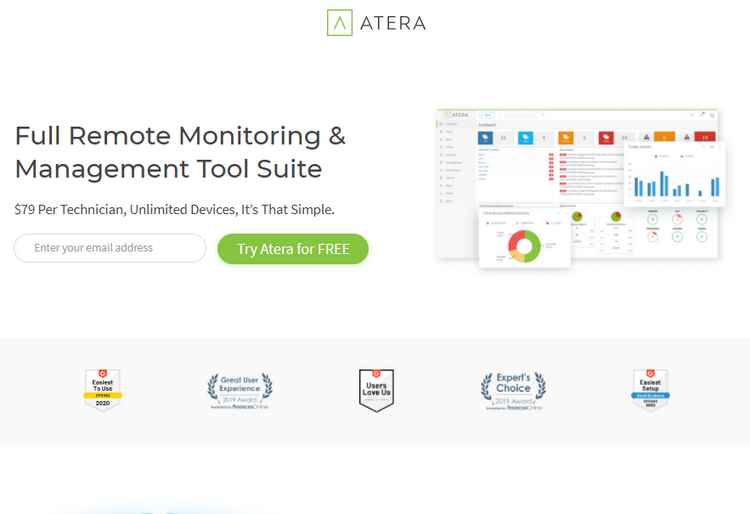
Intuitive remote access tool to completely manage...DescriptionAtera includes a remote access functionality as part of its device monitoring and support plans, which can be used by MSPs and support staff in order to provide remote support.
The tool requires the installation of a connection agent on supported endpoints and a connection tool to supplement the web UI. Connections are fast and secure.
Pros & ConsAtera Pros & Cons
PROS
Real time connectivitySecured encrypted connectionWindows and Mac connection agentsCONS
No Linux connection agentRelatively expensive subscriptionOver 200 people visited this site today - 2

 Secure remote access that connects you to your o...
- Limited Time Sale: Get 90% off the first year
- Unlimited Remote Access
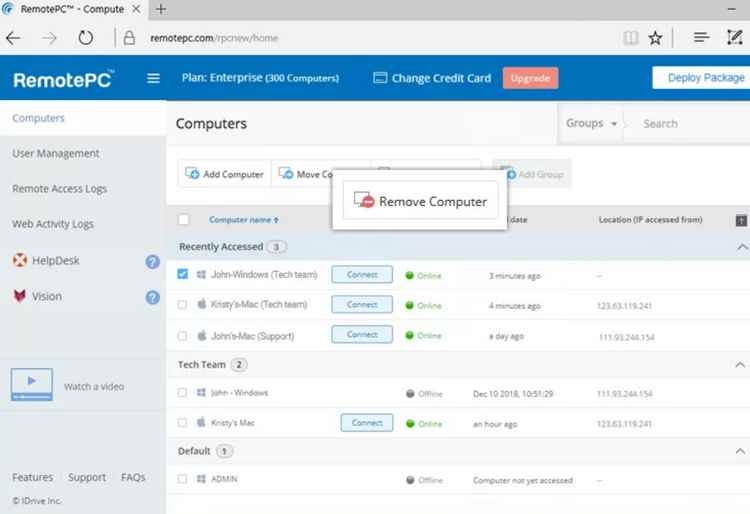
Secure remote access that connects you to your of...DescriptionRemotePC is a feature-packed remote desktop software for individuals and businesses. You can access any computer from another desktop or mobile device, plus set up an unlimited number of concurrent sessions. Even better, RemotePC offers personal, team, and helpdesk plans.
This software is easy to set up and even easier to use. Businesses can have an unlimited number of users and manage remote access seamlessly. Plus, RemotePC comes with built-in video conferencing, whiteboard tools, and one-time access codes.
Pros & ConsRemotePC Pros & Cons
PROS
Flexible, inexpensive plansCollaboration features for teamsSupports wake-on-LANCONS
No audio chatTime consuming for business setup - 3

 Increase productivity with secure access to your...
- Free 7-day trial
- Unlimited Remote Access
Increase productivity with secure access to your ...DescriptionGoToMyPC is a remote access tool intended for users that need to access files, and view their screen remotely. It can run on a variety of mobile devices including iPads, iPhones, Android devices, and the Kindle Fire.
The company also recently upgraded its encryption strength to 256-bit AES which puts it on par with other tools in the industry.
Pros & ConsGoToMyPC Pros & Cons
PROS
Now supporting 256-bit AESKindle Fire friendlyFull PC transferCONS
No Wake on LAN with single user licenseExpensive for personal use - 4

 Efficient remote support tools for IT profession...
- Free 15-day trial
- Securely access servers & remote computers
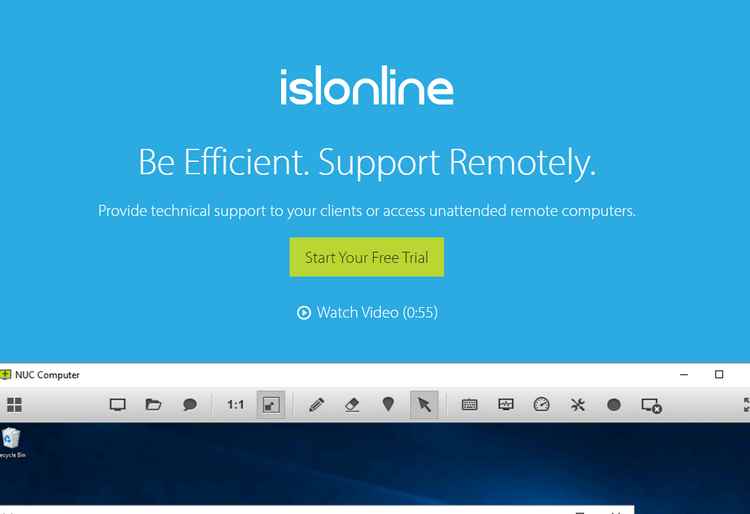
Efficient remote support tools for IT professiona...DescriptionISL Online is a great tool for busy support teams with a lot of remote endpoints to support. Whether they’re running Windows, Mac, or Linux, ISL Online has clients to get the job done.
The tool also supports automatic session recording, on-screen annotations, and live chat and file sharing.
Pros & ConsISL Online Pros & Cons
PROS
Live chat and file sharingLinux, Windows, Mac clientsOn screen annotationsCONS
One simultaneous connection per licenseNot the cheapest remote tool on the market - 5

 Connect to any device, platform, or network with...
- Free trial for up to 5 devices
- Secure remote access management
Connect to any device, platform, or network with ...DescriptionIf your business depends upon being able to instantly access computers running a variety of different operating systems around the world (without compromising on security) then Netop Remote Access could be a good fit.
This advanced remote access tool features real time chat and file sharing. Plans are available for more than 500 devices and on premises installations can also be configured.
Pros & ConsNetop Pros & Cons
PROS
Multi client supportCan support more than 500 devicesEnterprise capableCONS
Not easiest tool out thereOn premises pricing by quote only


Top10.com Total Score
Our product scores consist of a combination of the following 3 components:
Popularity
Top10.com measures user engagement based on the number of clicks each listed brand received in the past 7 days. The number of clicks to each brand will be measured against other brands listed in the same query. Therefore, the higher the share of clicks a brand receives in any specific query, the higher the Click Trend Score. Top10.com accepts advertising compensation from companies, which impacts their (and/or their products’) position, and in some cases, may also affect their Click Trend Score.
Brand Reputation
Semrush is a trusted and comprehensive tool that offers insights about online visibility and performance. The Top10.com Total Score will consist of the brand's reputation from Semrush. The brand reputation is based on Semrush's analysis of clickstream data, which includes user behavior, search patterns, and engagement, to accurately measure each brand's prominence, credibility, and trustworthiness. If a brand does not have a Semrush score, the Top10.com Total Score will be based solely on the Click Trend Score and Products & Features Score (read below).
Features & Benefits
Top10.com editorial team researches and reviews financial products based on factors such as: range of products and services offered, ease-of-use, online accessibility, customer service, special awards, and more. Each brand is then given a score based on the offerings in each parameter. The specific parameters which we use to evaluate the score of each product can be found on its review page.


